The AI interface
Use the one AI input: pick the right mode, find past threads and know what it can do in your workspace.
Updated 23 September 2026
On this page
- Why
- An application engineer does not open a different assistant for each part of the job.
- What
/appis the one AI input in the platform, and what it can do follows your products, your role and your areas.- How
- Type or attach what arrived, pick the mode and send.
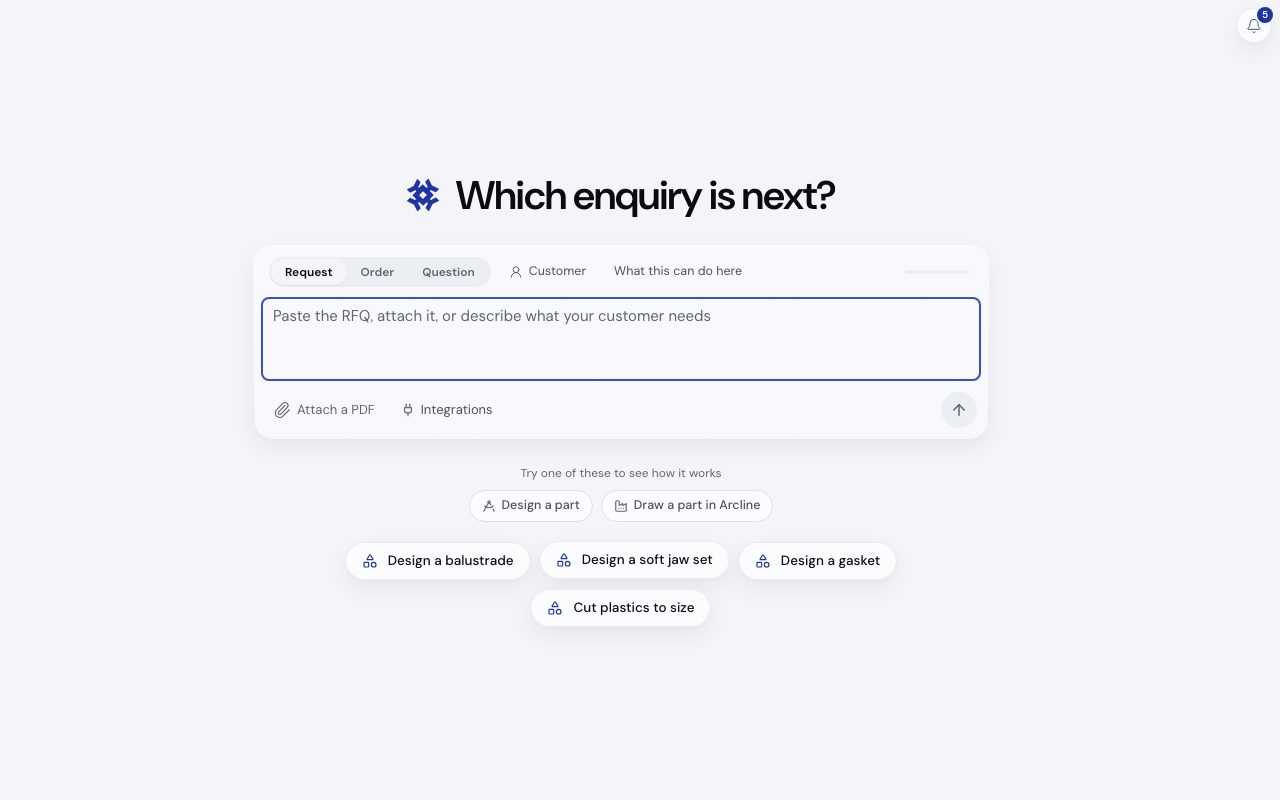
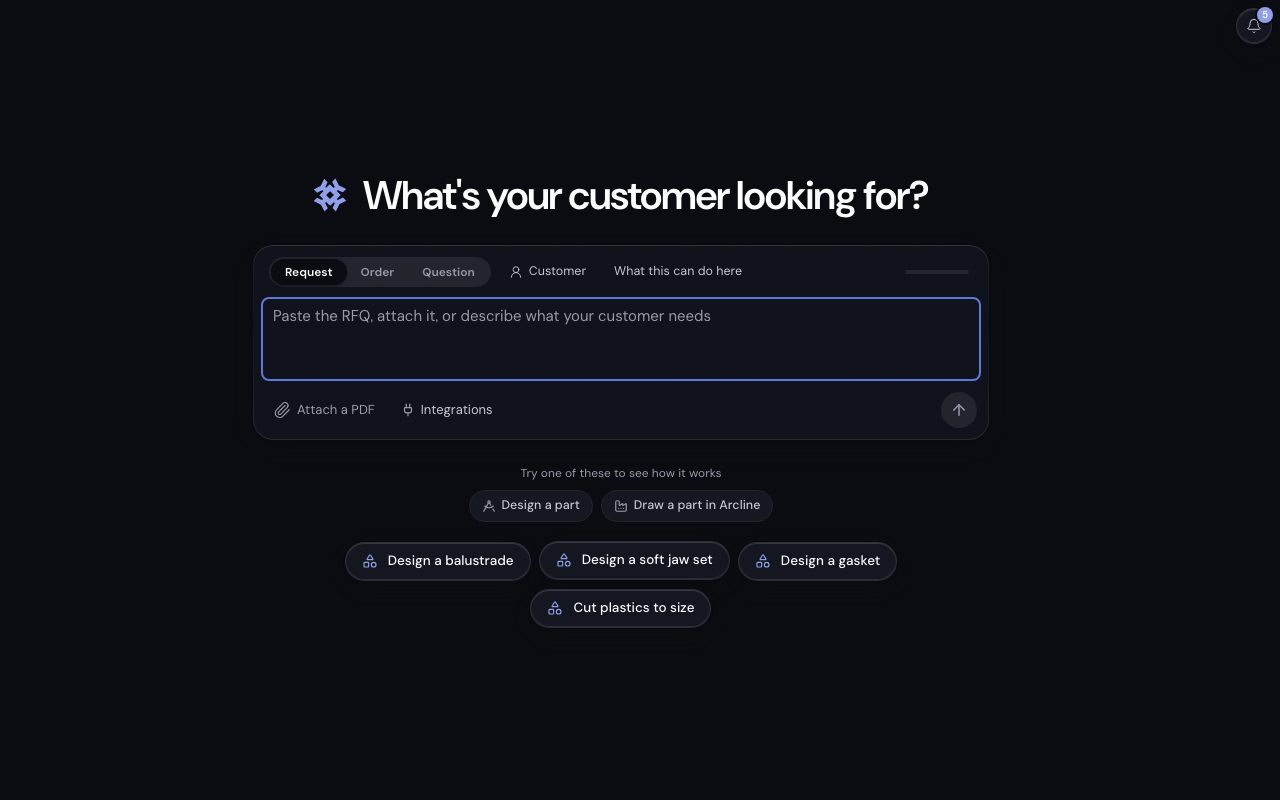
/app, demonstration data, captured 23 September 2026. Open full sizeOpen full sizeOne input
No other area has an AI box. Where a screen benefits, a quiet link opens /app with the prompt written for you, never sent:
| Link | Where |
|---|---|
| Build a meeting agenda | Inspect |
| Draft a price list | Inspect |
| Debrief this visit | Inspect |
| Build this from what we sell | Inspect |
| Ask about this design | Design |
| Read these columns | Catalogue |
| Ask for help | Support and the account menu |
| Ask about this customer | Customers |
The modes
| Mode | Use it for |
|---|---|
| Request | An enquiry to price, an RFQ or a drawing. Every line is set out, matched against what you sell or service, then drafted into a quote. |
| Order | A purchase order to raise, a PO. Lines are matched and checked against the quote they came from, then drafted into an order. |
| Question | A question, technical or about your own work, answered with its sources. |
Question is always there. Request and Order appear when Sales Engineer, Design Engineer, Service Centre, Wizard or Commerce is on, your role is sales or above and your areas include Quotes (for Request) or Orders (for Order). The mode decides what comes back, so the AI never guesses.
Your chats
Every conversation is a chat you can reopen. The latest sit in the menu under Recents, on every screen, with the pinned ones above them. All chats beside the heading opens the whole list, and its search finds a chat by its title or by anything asked in it.
Each chat offers Rename, Pin and Archive, and an archived one Restore from All chats; nothing is deleted. On a narrower screen Recents are in the menu behind the menu button.
What it can do here
What this can do here, beside the modes, lists what the AI can do for you in this workspace, narrowed by your role and your areas. A product you do not have is not listed; ask for it anyway and the AI says which product would answer.
| Product | What the AI can do |
|---|---|
| Every workspace | Ask a technical question and get help with Kabaido |
| Sales Engineer | Answer a request for quotation, raise an order from a purchase order and ask about your catalogue |
| Design Engineer | Answer a request for quotation, raise an order from a purchase order and configure a custom product |
| Route | Track a delivery and see today's deliveries |
| Source | Ask suppliers for a price and check a purchase order |
| Stock | Check stock and adjust or move stock |
| Service Centre | Answer a request for quotation, raise an order from a purchase order, price service work, price a batch of items, look up an item's history and see what is due |
| Machinist | Check a job on the floor, check the schedule and capacity and make a job from a request |
| Wizard | Answer a request for quotation, raise an order from a purchase order and pick the right product with a wizard |
| Inspect | Prepare a visit agenda, draft a price list, debrief a visit and build your offering map |
| Commerce | Answer a request for quotation, raise an order from a purchase order, reply to a website enquiry, read your website's numbers and see who uses your customer sign in |
| Wherever the Catalogue is | Read a spreadsheet's columns |
The usage bar at the top right of the box moves as an answer finishes: one allowance for the whole workspace, shared by everyone in it. See how usage works.
What the AI can do, listed by product for three workspaces: Sales Engineer alone, Sales Engineer with Service Centre, and Machinist with Route and Stock.
With Machinist + Route + Stock on
The capability list for three product setups, resolved by the real registry.
Related
- AISend a request, a purchase order or a question from the one input in the platform and find every thread again.
- Sending a requestSend a customer enquiry to the AI area as text, a file or a paste and get a structured answer back.
- Application Engineering IntelligenceUnderstand the knowledge behind every AI answer: seven categories over fifteen knowledge packs, selected per request.
- How usage worksKnow what draws on the month's usage, what never does and what happens when it is spent.