How your workspace adapts
Predict what appears, what stays and what goes when a product is switched on or off.
Updated 23 September 2026
On this page
- Why
- A workspace should carry exactly what the business does, and grow without a migration.
- What
- The menu, the views, the AI's capabilities, the tours and the setup checklist are all worked out from the products that are on.
- How
- An admin or owner switches products at
/app/settings/products; everything else follows.
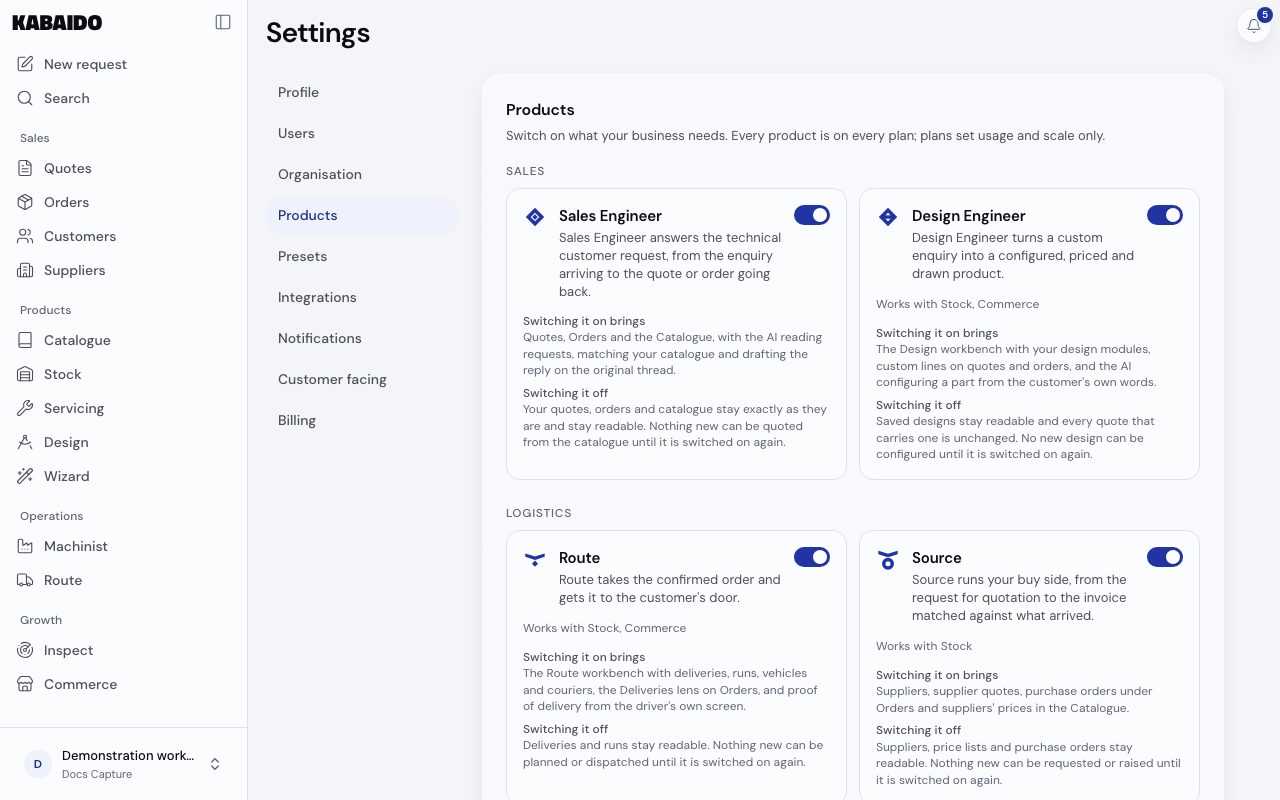
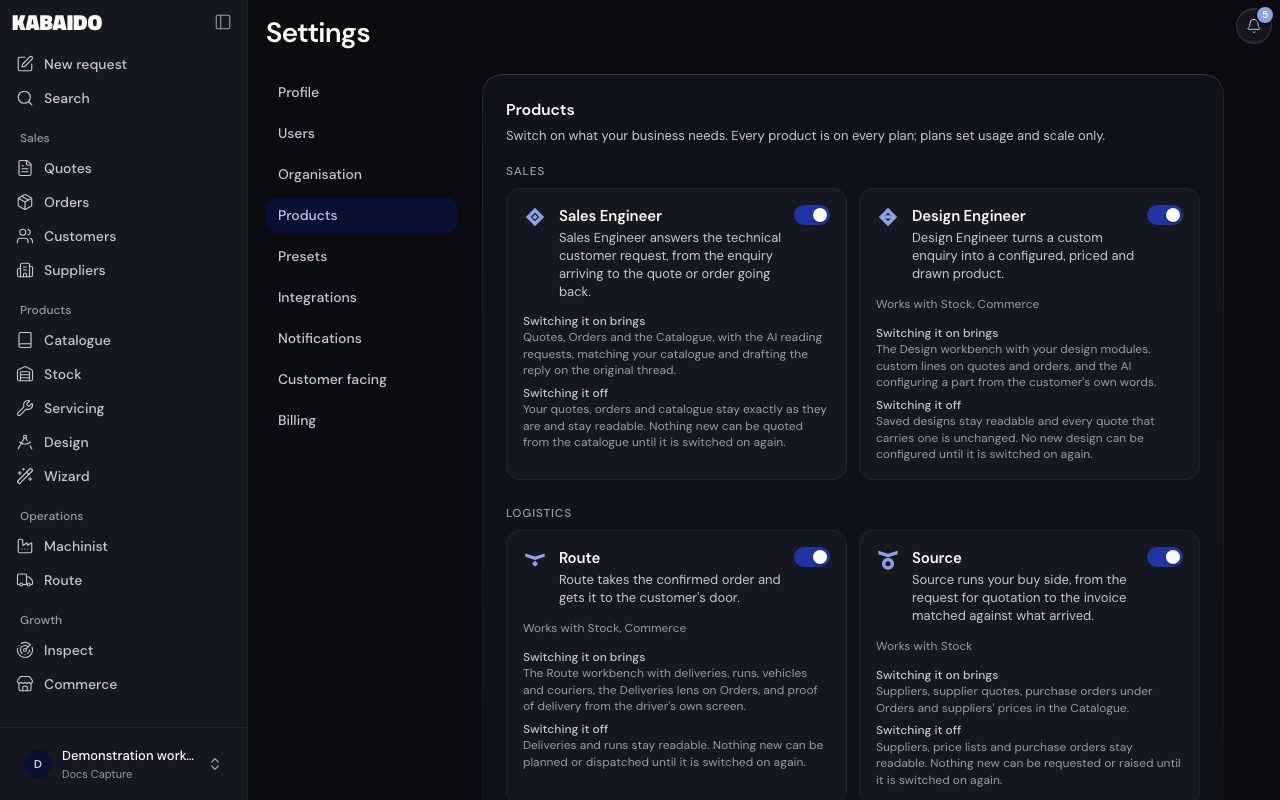
/app/settings/products, demonstration data, captured 23 September 2026. Open full sizeOpen full sizeThe union rule
- An area is present when any product that brings it is on.
- Its views are the union of what the products that are on add. Nothing is duplicated.
- A contribution, a product adding to an area it does not bring, appears only when both products are on.
Orders shows it well. Each view appears with a product that adds it:
| Orders view | Added by |
|---|---|
| Sales | Sales Engineer, Design Engineer, Service Centre, Wizard and Commerce |
| Purchase | Source |
| Production | Machinist |
| Deliveries | Route |
Switching a product off
- Nothing is deleted.
- Its area stays readable with a banner, and writes there are refused.
- Its menu entry moves to the foot of its group, and disappears once the area has no rows.
- The AI stops offering it: a read only area offers no AI.
- At least one product always stays on.
Switch it on again and the area, its views and the AI's capabilities come back with every row intact.
Works with, never needs
No product requires another. Where two add to each other, the product card says so:
| Product | Works with |
|---|---|
| Design Engineer | Stock and Commerce |
| Route | Stock and Commerce |
| Source | Stock |
| Stock | Design Engineer, Route, Source, Service Centre and Machinist |
| Service Centre | Stock and Commerce |
| Machinist | Stock |
| Wizard | Commerce |
| Commerce | Design Engineer, Route, Service Centre and Wizard |
Access narrows it further
A member's role and areas narrow the same workspace for them: an area left off their list leaves their menu and their AI capability list. See Users, roles and stations.
The platform's own Products switchboard beside the menu it produces. Switch a product on or off and the menu follows, computed by the same registry the platform reads.
Sales
- Quotes
- Orders
- Customers
Products
- Catalogue
- Stock
- Design
Operations
- Machinist
Growth
- Commerce
Products
Switch on what your business needs. Every product is on every plan; plans set usage and scale only.
Sales
Sales Engineer answers the technical customer request, from the enquiry arriving to the quote or order going back.
Design Engineer turns a custom enquiry into a configured, priced and drawn product.
Logistics
Route takes the confirmed order and gets it to the customer's door.
Source runs your buy side, from the request for quotation to the invoice matched against what arrived.
Stock keeps one true quantity for everything you hold, wherever it is.
Production
Service Centre runs the work you do on the customer's own property, from the item arriving to the item going back.
Machinist runs the floor and tells you what the job cost.
Marketing
Wizard picks the right product for the application, the way an application engineer would.
Inspect tells your sales team which manufacturers to approach and what to say when they get there.
Commerce puts your catalogue online as a B2B trade site and connects it to the platform, and gives your customers their own sign in.
A manufacturer: Design Engineer, Stock, Machinist and Commerce
Switch anything on or off to try your own.
The Products switchboard beside the menu the registry computes for it.
Related
- Products, areas and partsTell a product from an area and a part, know what you install inside a product and where each one shows up.
- SettingsKnow what each settings section holds and who can open it.
- The AI interfaceUse the one AI input: pick the right mode, find past threads and know what it can do in your workspace.
- Users, roles and stationsInvite people by the job they do and give each one the role, areas and stations that job needs.