Presets
Set a workspace up for your trade in one step, at onboarding or later, and know what a preset will and will not touch.
Updated 23 September 2026
On this page
- Why
- A new workspace should start knowing the trade, not as a blank form.
- What
- Ready made setup for a trade, applied at onboarding or later, with schemas, design modules, wizards and service models.
- How
- Installing adds what the preset carries and asks before switching a product on; it creates no sample products.
Where it appears
| Area | What you see | Brought by |
|---|---|---|
| Servicing | A service model installs its families, workflows and rules, switched off | Service Centre |
| Design | Design modules added, and kept while a saved design uses them | Design Engineer |
| Wizard | The installed presets decide which wizards the area offers | Wizard |
| Machinist | Machine interfaces on, and an inactive station per machine | Machinist |
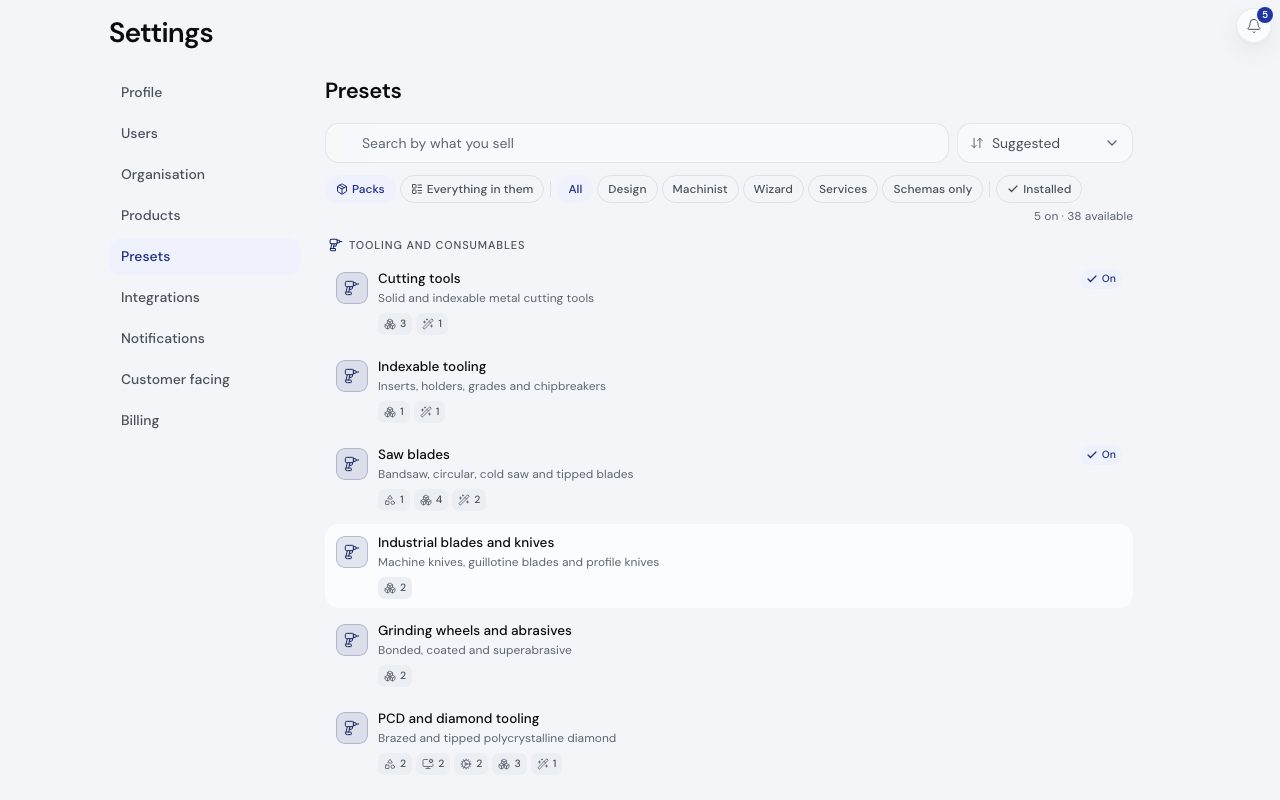
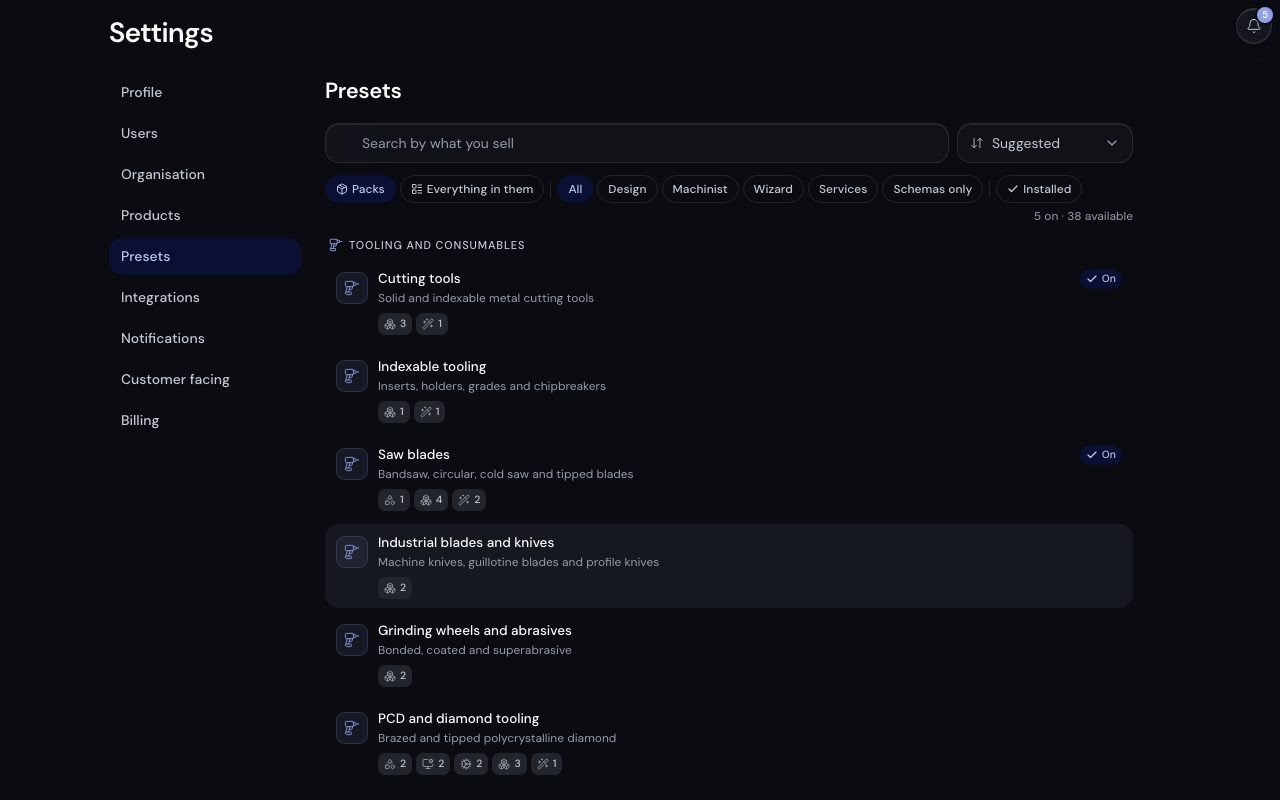
/app/settings/presets, demonstration data, captured 23 September 2026. Open full sizeOpen full sizeA preset answers one question: what do you sell, and what do you service. Several can be on at once; Presets by trade lists what each one sets up.
Turn one on
At onboarding, the last screen asks What do you sell or service? and offers the presets your chosen products carry. No sample products, customers or prices are ever created. Later:
- Step 1.
Open
/app/settings/presetsand search by what you sell. - Step 2.
Open a preset to see what it sets up, who it suits and what it does not cover.
- Step 3.
Choose Turn on. If it needs a product you have off, it asks before switching that product on.
- Step 4.
Read the report: every item is Added, Already there or Not added with the reason.
- Services and service models arrive switched off: their figures are starting points. Set your rates, then switch each one on.
- A machine arrives as an inactive station with no rate, and an inactive station cannot sign in. Add the machine under Machines, which issues a working device key.
- Services count against your plan's allowance (2 on the free plan). A service that does not fit is listed as Not added with the reason, and the rest of the preset still goes in.
Improvements reach you
When a preset you have grows, it shows Update: updating adds the new pieces and touches nothing you have filled in. Kabaido also runs the same additive update across existing workspaces when it improves a preset.
Turn one off
Turn off takes back the offer, not your work. A schema with products stays, a service is paused with its history, a customer field is archived with its values kept, and a design module with saved designs stays on.
A preset never changes what the AI knows: full Application Engineering Intelligence is on for every workspace. Only an admin or owner changes the set; everyone can read it.
Related
- Presets by tradeFind the preset for what you sell or service, and see exactly what it sets up before you turn it on.
- Create your accountSign up and set up a workspace around your trade, your products and your presets in a few short steps.
- Schemas and fieldsDescribe a product family with a schema of typed fields, and know which fields the AI matches an enquiry on.
- Service models and workflow typesSet up a service that prices itself, and know which workflow type your work follows.