Customer facing settings
Find every setting of the customer surface and know what each one does.
Updated 23 September 2026
- Why
- The surface is yours to shape, and every change should be live without a deploy.
- What
- One settings page for the address, the domain, the brand, the areas and the customer AI.
- How
- Open
/app/settings/customer-facing, change what you need and choose Save.
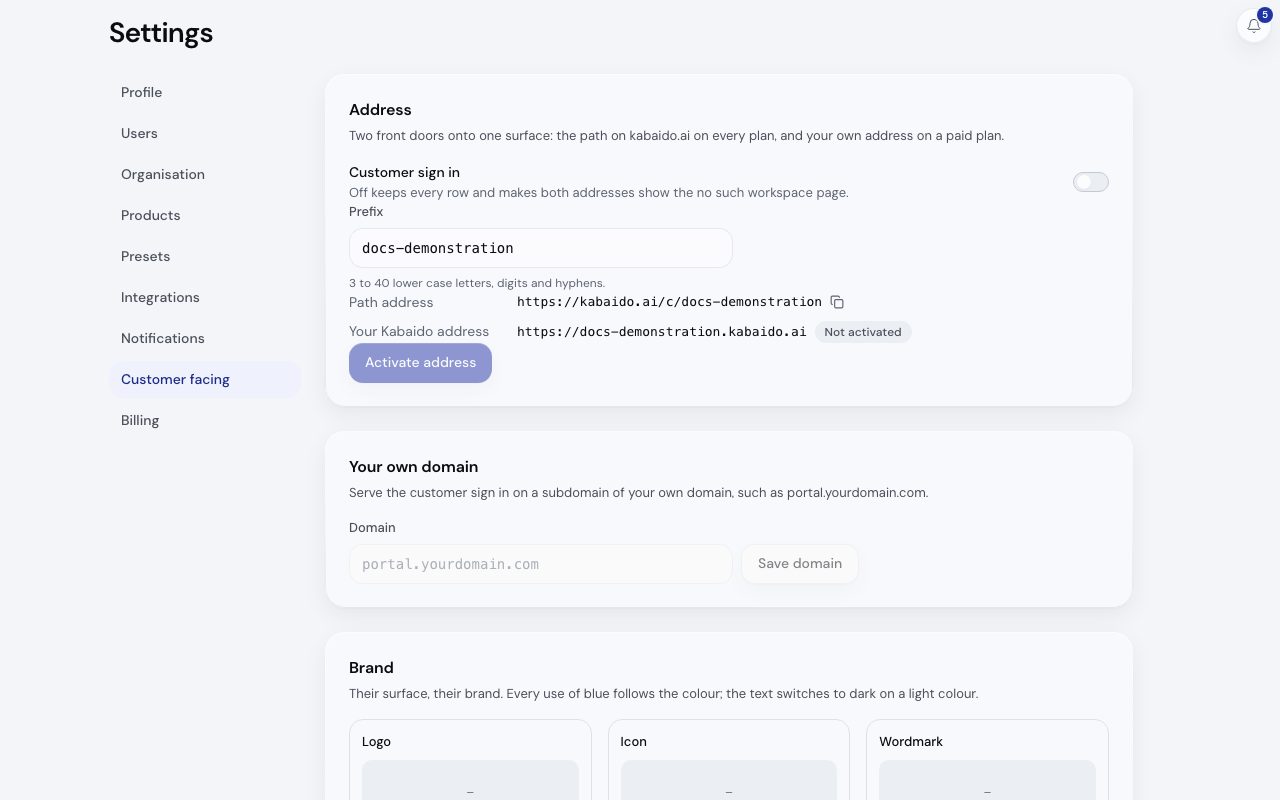
/app/settings/customer-facing, demonstration data, captured 23 September 2026. Open full sizeOpen full sizeCustomer facing appears under Settings when Commerce is on. Admins and owners can open it. Changes are live on the next load.
| Section | What it holds |
|---|---|
| Address | Customer sign in on or off, the Prefix, both addresses, Activate address and View as a customer |
| Your own domain | The Domain, the CNAME record to add and Attach domain: see your own domain |
| Brand | Logo, Icon, Wordmark, Brand colour with a live preview and the Default theme |
| What customers can use | A switch per area, the wizard modules customers may run, Customer AI, Messages a day per customer and Allow sign up |
| Welcome and support | Welcome title, Welcome text, Support email and Support phone |
| Notifications to your customers | The access code invitation and the welcome email |
| What a public scan shows | How much a scan of one of your labels tells someone who is not signed in: see traceability |
Turning Customer sign in off keeps every row. Both addresses then show a page saying there is nothing at that address.
An area switch is greyed with its reason when its own product is off, for example Needs Route beside Deliveries. With Allow sign up off, only people who already redeemed a code can sign in.